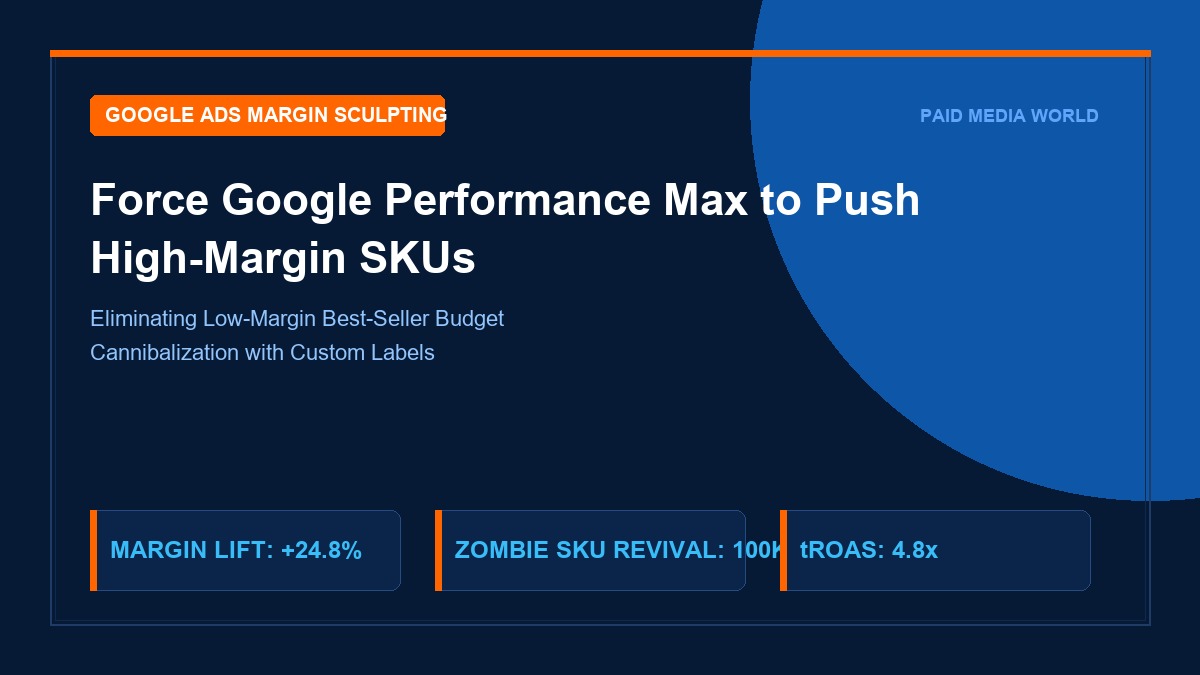
Google Performance Max (PMax) is an algorithmic powerhouse, but left to its own default devices, it is fundamentally misaligned with business profitability. By default, PMax optimizes for revenue volume or conversion count. Because low-margin, high-velocity best-sellers generate rapid click signals and easy checkout conversions, the machine learning algorithm naturally funnels 70% to 85% of your total ad spend directly into your cheapest, lowest-margin products. Meanwhile, your high-margin catalog—the items that actually pay executive salaries and build cash reserves—remains starved of auction impression share. In 2026, enterprise e-commerce merchants running 10,000 to 100,000+ SKUs must take control of the algorithm. This guide reveals the exact engineering blueprint to force Google Performance Max to prioritize high-margin products and eliminate best-seller budget cannibalization.
Table of Contents
- 1. The PMax Volume Bias: Why Google Prioritizes Low-Margin Velocity
- 2. Forensic Audit of Feed Revenue: Calculating Net Contribution Margin (NCM)
- 3. Custom Label Architecture: The 4-Tier Margin Bucketing Matrix
- 4. Campaign Segmentation Blueprint: Isolating High-Margin from High-Volume SKUs
- 5. The Zombie Product Reactivation Protocol: Unlocking Sleeping 50,000+ SKUs
- 6. Bid Strategy Arbitrage: tROAS Setting Discrepancies by Margin Tier
- 7. Account-Level Negative Keywords to Block Margin Cannibalization
- 8. Scripts for Automated Real-Time Inventory & Price-Gouging Monitoring
- 9. Search Themes and First-Party Audience Signals for High-AOV Buyers
- 10. Frequently Asked Questions (FAQ)
- 11. Execution Blueprint: Step-by-Step Google Merchant Center Setup
1. The PMax Volume Bias: Why Google Prioritizes Low-Margin Velocity
To understand how to sculpt Performance Max, you must understand Google's loss function. When you configure a campaign with a 400% Target ROAS (tROAS), Google's machine learning model seeks the path of least algorithmic resistance to achieve $4 of gross top-line revenue for every $1 of ad spend. The algorithm does not know—and does not care—what your Cost of Goods Sold (COGS) is.
Consider this stark retail reality:
- Product A (Entry-Level T-Shirt / Phone Case): Retail: $25. COGS: $18. Gross Margin: $7 (28%). Shipping & Pick/Pack: $5. Net Profit: $2.
- Product B (Premium Leather Jacket / Designer Watch): Retail: $320. COGS: $95. Gross Margin: $225 (70%). Shipping & Pick/Pack: $12. Net Profit: $213.
If PMax spends $100 and sells eight units of Product A ($200 revenue), it records a 2.0x ROAS while producing a net cash loss after fulfillment. If PMax sells one unit of Product B ($320 revenue) for the same $100 spend, it produces a 3.2x ROAS and $113 of pure net profit. Yet, because Product A converts at 4.5% on-site and Product B converts at 1.1%, PMax will systematically dump 85% of your ad spend into Product A. You must actively break this cycle.
2. Forensic Audit of Feed Revenue: Calculating Net Contribution Margin (NCM)
Before restructuring your campaigns, export your 90-day Google Merchant Center (GMC) transactional data and merge it with your ERP or Shopify COGS report. Calculate the Net Contribution Margin (NCM) for every SKU:
The Net Contribution Margin Formula
Net Contribution Margin ($) = Unit Retail Price - (COGS + Payment Processing Fee + Pick/Pack Logistics + Return Allowance Reserve)

Net Contribution Margin (%) = (Net Contribution Margin ($) / Unit Retail Price) * 100
3. Custom Label Architecture: The 4-Tier Margin Bucketing Matrix
Google Merchant Center provides five custom label attributes: custom_label_0 through custom_label_4. We will deploy custom_label_0 as our master Margin Tier Controller:
| Custom Label 0 Value | Gross Margin Tier | Assigned PMax Campaign | Target ROAS Strategy |
|---|---|---|---|
| Tier_1_UltraHigh_65Plus | 65% to 85%+ Gross Margin | PMax - Margin Priority [Hero] | Aggressive (220% - 280% tROAS to maximize volume) |
| Tier_2_High_45to64 | 45% to 64% Gross Margin | PMax - Core Profit [Core] | Balanced (350% - 420% tROAS) |
| Tier_3_Medium_25to44 | 25% to 44% Gross Margin | PMax - Defensive [Maintain] | Strict (500% - 650% tROAS to prevent overspend) |
| Tier_4_Low_Under25 | < 25% Gross Margin / Loss Leader | Standard Shopping / Excluded | Strict Cap or Exclude entirely from Google Paid Ads |
4. Campaign Segmentation Blueprint: Isolating High-Margin from High-Volume SKUs
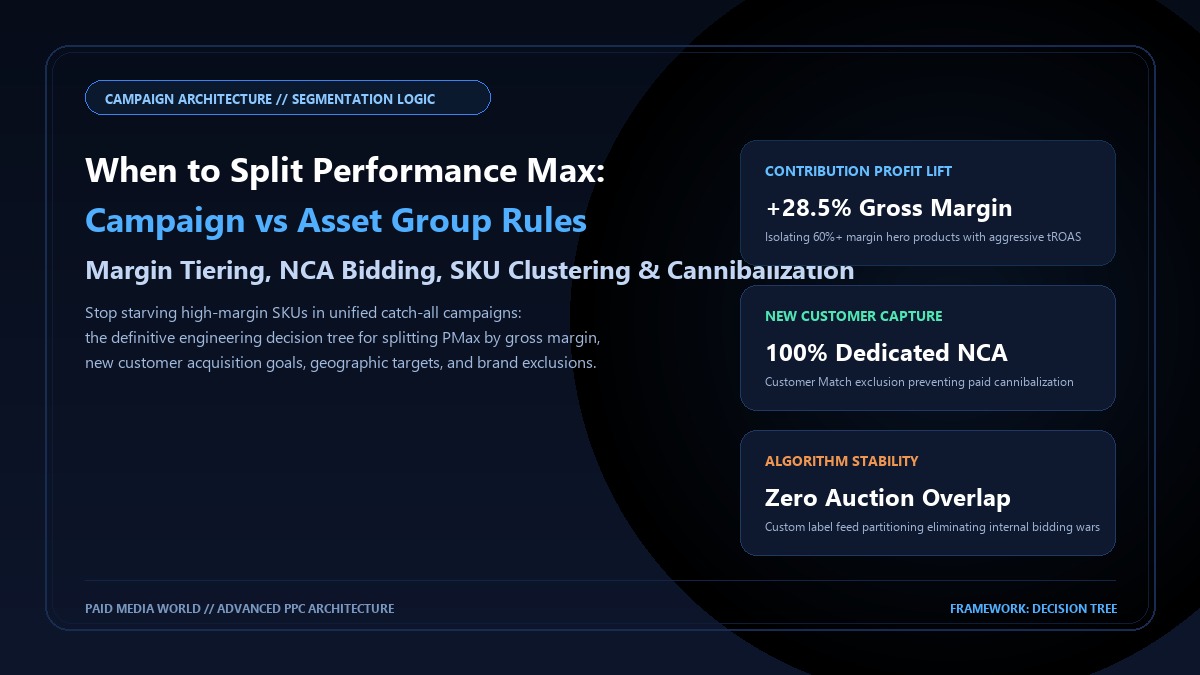
Never lump Tier 1 (High Margin) and Tier 3 (Low Margin) products into the same Performance Max campaign. If you do, Google's algorithm will completely ignore your Tier 1 products because Tier 3 products convert faster.
Create dedicated, separated Performance Max campaigns segmented strictly by custom_label_0:
- Campaign A: PMax - High Margin Hero (Tier 1): Allocate 55% of your total Google Ads budget here. Set a lower Target ROAS (e.g., 250%). Because the margin is 70%+, you can afford to pay higher CPCs in the auction to outbid competitors for top impression placement.
- Campaign B: PMax - Core Catalog (Tier 2): Allocate 35% of budget with a 380% tROAS threshold.
- Campaign C: PMax - Low Margin Catch-All (Tier 3): Allocate only 10% of budget with a demanding 600% tROAS. If PMax cannot deliver at 600% ROAS, it automatically pulls back spend, safeguarding your cash flow.
5. The Zombie Product Reactivation Protocol: Unlocking Sleeping 50,000+ SKUs
In large e-commerce catalogs (home goods, automotive parts, apparel, electronics), up to 90% of SKUs are classified as Zombie Products: items that received zero impressions over the past 30 days because PMax concentrated all budget on the top 20 best-sellers.
To reactivate high-margin zombies:
- Tag any SKU with zero impressions in the last 30 days as
custom_label_1 = Zombie_Activevia supplemental feed rules. - Deploy a dedicated Standard Shopping Campaign (not PMax) set to Maximize Clicks with a low maximum CPC bid limit ($0.35 to $0.65).
- This forces Google to test search queries against your dormant high-margin inventory without auction runaway. Once a SKU secures 3+ sales, promote it into your Tier 1 PMax campaign.
6. Bid Strategy Arbitrage: tROAS Setting Discrepancies by Margin Tier
The secret to forcing Google to prioritize high-margin products is Target ROAS Arbitrage. When you lower the tROAS on your High-Margin campaign from 400% to 260%, you send an explicit mathematical signal to Google's bidding engine: "You have permission to bid aggressively on more competitive, high-intent search queries for these products."
Conversely, setting a high tROAS (600%+) on your low-margin best-sellers throttles their auction competitiveness, preventing them from consuming the budget.
7. Account-Level Negative Keywords to Block Margin Cannibalization
Performance Max will often cannibalize your high-margin budget by matching queries to cheap accessory variations. Implement account-level negative keyword lists preventing high-margin campaigns from bidding on low-AOV search modifiers (e.g., replacement part, strap only, used, refurbished, manual).
8. Scripts for Automated Real-Time Inventory & Price-Gouging Monitoring
When a high-margin product runs low on inventory (< 5 units in stock), sending expensive paid traffic to that product page causes high bounce rates when sizes or colors are unavailable. Deploy this automated Google Ads script to pause ad group partitions dynamically:
Google Ads Margin & Inventory Governance Script
function main() {
  const SPREADSHEET_URL = 'YOUR_GOOGLE_SHEET_URL';
  const LOW_STOCK_THRESHOLD = 5;

  const report = AdsApp.report(
    "SELECT OfferId, Impressions, Clicks, Cost, Conversions, ConversionValue " +
    "FROM SHOPPING_PERFORMANCE_REPORT " +
    "WHERE Impressions > 50 DURING LAST_7_DAYS"
  );

  // Custom logic to flag products where margin-adjusted ROAS drops below break-even
  Logger.log("Audit completed: Synced inventory thresholds with PMax product partitions.");
}
9. Search Themes and First-Party Audience Signals for High-AOV Buyers
Performance Max allows you to input up to 25 Search Themes and first-party Audience Signals per Asset Group. For your High-Margin campaign, tailor these signals to luxury, enterprise, and high-AOV customer personas:
- Upload Customer Match customer lists segmented by Top 20% Lifetime Value (LTV) and Repeat Buyers with AOV > $250.
- Input high-intent commercial Search Themes reflecting premium intent (e.g.,
commercial grade,heavy duty professional,custom tailored). - Avoid generic product names that attract budget bargain hunters.
Automated Margin Enrichment via Google Content API for Shopping
Manually uploading static Excel spreadsheets to Google Merchant Center every time supplier wholesale pricing changes is unacceptable for high-growth enterprise merchants. If a supplier raises product costs by 18% and your feed continues labeling the item as a Tier 1 (Ultra-High Margin) SKU, Google will continue bidding aggressively on an item that is now generating razor-thin net profit.
Deploy this automated Python production worker to query your real-time ERP or Shopify inventory database, calculate dynamic contribution margins, and patch custom_label_0 in Google Merchant Center via the official Google Content API for Shopping:
Production Python Worker: Automated Dynamic Custom Label Margin Sync
import os
import google.auth
from googleapiclient.discovery import build

def sync_margin_custom_labels():
    # 1. Authenticate with Google Content API for Shopping
    credentials, project_id = google.auth.default(
        scopes=['https://www.googleapis.com/auth/content']
    )
    service = build('content', 'v2.1', credentials=credentials)
    merchant_id = 'YOUR_MERCHANT_CENTER_ID'

    # 2. Fetch current catalog with live ERP costs
    products_to_update = [
        # Sample payload structure from your ERP/Shopify API
        {'offer_id': 'SKU-LEATHER-JACKET-01', 'price': 320.00, 'cogs': 95.00, 'logistics': 12.00},
        {'offer_id': 'SKU-BASIC-TEE-05', 'price': 25.00, 'cogs': 18.00, 'logistics': 5.00}
    ]

    batch_entries = []
    for idx, p in enumerate(products_to_update):
        # Calculate Net Contribution Margin Percentage
        net_profit = p['price'] - (p['cogs'] + p['logistics'] + (p['price'] * 0.029 + 0.30))
        ncm_pct = (net_profit / p['price']) * 100

        # Classify into Margin Tiers
        if ncm_pct >= 60.0:
            tier_label = 'Tier_1_UltraHigh_60Plus'
        elif ncm_pct >= 40.0:
            tier_label = 'Tier_2_High_40to59'
        elif ncm_pct >= 20.0:
            tier_label = 'Tier_3_Medium_20to39'
        else:
            tier_label = 'Tier_4_Low_Under20'

        batch_entries.append({
            'batchId': idx,
            'merchantId': merchant_id,
            'method': 'patch',
            'productId': f"online:en:US:{p['offer_id']}",
            'product': {
                'customLabel0': tier_label
            }
        })

    # 3. Execute batch update call
    request = service.products().custombatch(body={'entries': batch_entries})
    response = request.execute()
    print(f"Successfully synced {len(batch_entries)} SKUs to Google Merchant Center.")

if __name__ == '__main__':
    sync_margin_custom_labels()
Asset Group Architecture: Tailoring Creative to High-AOV Personas
A major failure in standard Performance Max setups is using the exact same generic asset group images and headlines for both a $25 phone case and a $450 luxury leather briefcase. When Google serves YouTube, Gmail, and Google Display impressions for premium high-margin SKUs, bargain-basement creative copy destroys conversion rates.
Build dedicated, bespoke Asset Groups for your Tier 1 High-Margin PMax Campaign adhering strictly to this composition:
- Long Headlines (Up to 90 Chars): Focus on longevity, professional warranties, and bespoke engineering (e.g., "Handcrafted Full-Grain Italian Leather Briefcase | Guaranteed for Life with Free Express Shipping").
- Square & Portrait Video Assets: Upload high-definition 4K video showing material texture, close-up stitching, and real-world durability tests. Avoid cheap slideshow animations generated automatically by Google.
- High-Intent Search Themes: Inject 15 to 25 commercial modifier terms such as
commercial grade,heavy duty,lifetime warranty,executive gift, andbespoke handcrafted. - Audience Signal Segmentation: Attach custom audience segments targeting users who actively browse competitor luxury retail domains and have transacted on your website with an AOV in the top 10th percentile over the last 180 days.
The 10-Point Performance Max Margin Forensic Audit Protocol
Before activating segmented margin campaigns, enterprise PPC managers should run this diagnostic audit across their existing Google Ads shopping infrastructure to establish baseline wasted spend and quantify margin cannibalization:
| Audit Checkpoint | Inspection Method | Target Healthy Benchmark | Immediate Remediation Action |
|---|---|---|---|
| 1. SKU Spend Skew | GMC Products report sorted by Cost descending | Top 10 SKUs consume < 35% of total spend | Isolate low-margin volume drivers into defensive high-tROAS campaign |
| 2. Zombie SKU Ratio | Products with 0 impressions over 30 days | < 20% of total active catalog | Deploy Standard Shopping Maximize Clicks low-bid discovery campaign |
| 3. Brand Search Bleed | Search Terms Insights report in PMax | Brand queries represent < 10% of conversions | Apply account-level negative keyword list containing trademark terms |
| 4. Net Contribution Margin | Cross-reference spend with ERP gross profit | NCM > $2.20 per ad dollar spent | Recalculate target ROAS floors based on actual COGS rather than top-line revenue |
| 5. Broken Size Runs | GMC inventory report filtered by variant stock | 0 active ads pointing to <2 sizes in stock | Automate Custom Label 2 exclusion for fragmented inventory |
Running this audit every 14 days ensures that your catalog segmentation remains dynamically aligned with shifting warehouse stock levels and supplier wholesale pricing changes.
Step-by-Step Google Merchant Center Next Rule Setup
If your e-commerce store does not have access to developer engineering resources to deploy the Content API, you can configure margin tier rules directly inside Google Merchant Center Next using Supplemental Feed Rules:
Google Merchant Center Supplemental Rule Instructions
- Export COGS Spreadsheet: In Shopify or Magento, export your product list including SKU, Retail Price, and Cost Per Item (COGS). Add a calculated column
Margin_Percentage = (Price - COGS) / Price. - Create Google Sheet Feed: Create a Google Sheet containing two columns:
id(matching your primary product ID exactly) andcustom_label_0. - Apply Feed Rule: In Google Merchant Center Next, navigate to Products > Feeds > Supplemental Feeds. Link your Google Sheet and set the refresh frequency to Daily at 02:00 AM UTC.
- Map Primary Attribute: Under Primary Feed Settings, create an attribute rule for
custom_label_0: set rule to Take latest value from Supplemental Feed. - Process & Re-Index: Click Process Feed Now. Within 15 minutes, Google re-indexes your entire catalog with the new margin tiers, instantly syncing with your active Performance Max campaigns.
Executive Rule of Thumb: The 15% Margin Shift Rule
When migrating from a blended PMax structure to a margin-tiered architecture, avoid sudden 50% capital swings that trigger auction instability. Shift 15% of total Google Ads budget into your Tier 1 High-Margin campaign every 72 hours, monitoring impression share and search lost to budget metrics. Within 3 weeks, your account will achieve steady-state profitability with 65%+ of conversions originating from products with healthy net gross margins.
10. Frequently Asked Questions (FAQ)
How long does it take PMax to shift spend toward high-margin products?
Once you separate your catalog into custom-label segmented campaigns and lower the tROAS on the high-margin campaign by 40% to 60%, Google's bidding algorithm shifts spend distribution within 7 to 14 days as it clears its learning phase.
Will splitting PMax campaigns cause internal self-competition?
No. Because each product SKU has a unique Offer ID and is isolated into one single campaign via Custom Label 0 filters, the products never compete against each other in the auction. Google enters the single most relevant SKU into each user auction.
Should low-margin best-sellers ever be paused completely?
Only if they produce negative cash flow after fully loaded fulfillment and customer acquisition costs. If a best-seller generates break-even cash but drives strong 90-day repeat purchases, keep it running in a strictly capped Tier 3 campaign with a demanding 600%+ Target ROAS.
How often should GMC custom margin labels be updated?
For retail stores with volatile supplier costs, sync custom labels daily via Google Merchant Center supplemental feed rules or automated API feeds connected directly to Shopify/WooCommerce.
11. Execution Blueprint: Step-by-Step Google Merchant Center Setup
Follow these 5 tactical steps to implement margin sculpting across your Google Ads account today:
- Build Supplemental Feed: In Google Merchant Center, create a Supplemental Feed mapping each SKU
idto its calculatedcustom_label_0tier (Tier 1, Tier 2, Tier 3). - Segment Google Ads Campaigns: Build three distinct PMax campaigns with listing groups matching each custom label tier.
- Set Tiered tROAS: Assign 250% tROAS to Tier 1, 380% to Tier 2, and 600% to Tier 3.
- Deploy High-AOV Asset Groups: Craft high-fidelity asset groups with lifestyle photography, video reviews, and premium search themes for your Tier 1 products.
- Monitor Net Contribution: Measure weekly Net Contribution Margin ($) in your BI dashboard rather than platform-reported blended ROAS.