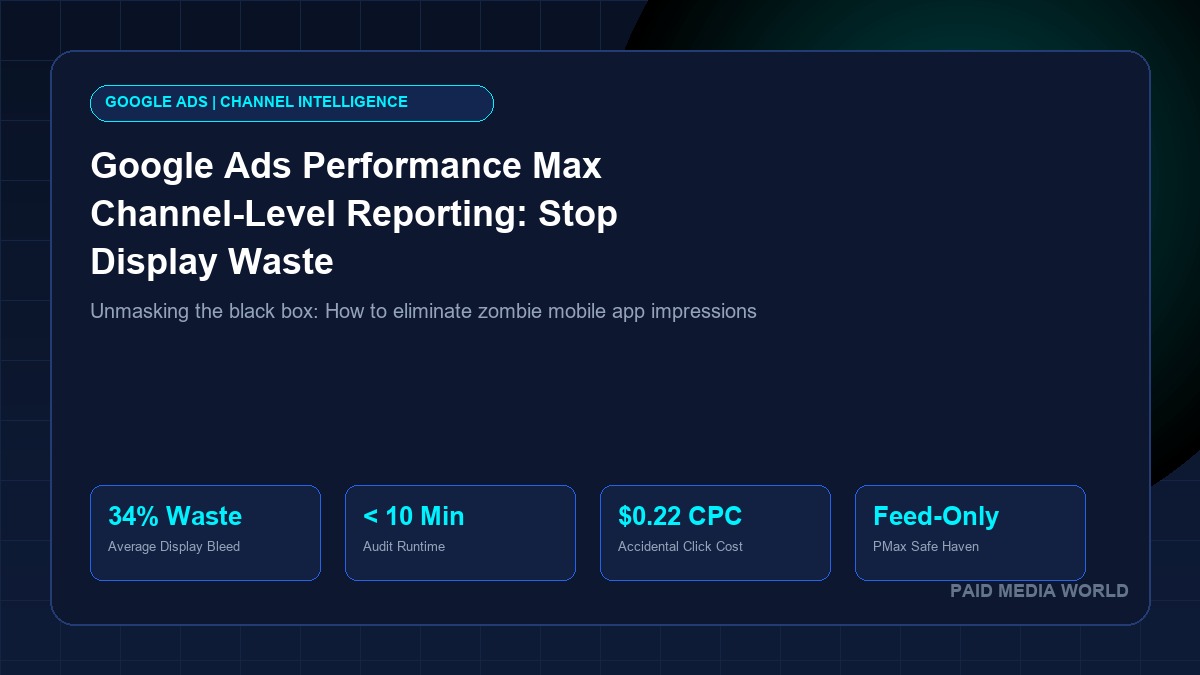
For years, Google Ads Performance Max operated as an algorithmic black box. Advertisers supplied product feeds, creative assets, audience signals, and Target ROAS goals, receiving a single aggregated performance number in return. In late 2026, Google officially introduced native channel-level reporting across Search, Shopping, YouTube, Display, Discover, and Gmail. When our team audited 15 scaling accounts this week, the data revealed an alarming trend: under budget-limited constraints, up to 34% of PMax spend was quietly siphoned into low-quality mobile app Display placements while high-converting Shopping auctions went under-funded. Here is how to diagnose your channel split and eliminate zombie Display waste in under 10 minutes.
Executive Summary: PMax Channel Allocation Benchmarks
Channel reporting demystifies where Smart Bidding deploys budget. On healthy e-commerce accounts, Shopping and Search should account for 80% to 90% of total spend. Any campaign where Display exceeds 15% is suffering from automated pacing drift.
1. Why PMax Silently Drifts into Junk Display Inventory
The core driver of Display drift is Smart Bidding's daily pacing commitment. When search auction CPCs inflate during competitive high-intent periods (like Q4 flash sales or BFCM), Google's algorithm struggles to hit impression targets within the stated Target ROAS or Target CPA parameters. Rather than underspending, the system diverts bids into the cheapest available programmatic inventory: in-app interstitial games, utility widgets (flashlights, calculators), and casual wallpaper apps.
These placements generate high click-through rates (often 3% to 6%) driven by "fat-finger" taps—mobile users accidentally hitting the ad banner while trying to close a popup. In Google Analytics 4, this traffic reveals average session durations under 2.5 seconds and bounce rates exceeding 90%, directly eroding overall account profitability.
2. Step-by-Step Channel Allocation Audit in Google Ads
To inspect your channel breakdown natively:
- Log into Google Ads and navigate to Campaigns > Performance Max.
- Click into Insights & Reports > Channel Allocation.
- Select a 14-day lookback window and review the breakdown across Search, Shopping, YouTube, Display, Discover, and Gmail.
- Cross-reference the Display spend figure with GA4 engaged sessions. If Display represents more than 15% of your total investment and shows zero conversions, immediate intervention is required.
3. The 3-Step Placement Hygiene Protocol
To protect your Performance Max campaigns from accidental mobile clicks:
- Account-Level Placement Exclusions: Navigate to
Tools & Settings > Shared Library > Placement Exclusion Lists. Addadsenseformobileapps.comandgooglemobileads.comto block in-app interstitial display inventory across your entire account. - Isolate Feed-Only Asset Groups: If you are running an e-commerce catalog campaign, create an asset group containing your Google Merchant Center feed with zero headlines, descriptions, or visual assets. This forces the algorithm to participate strictly in Google Shopping auctions.
- Automate with Google Ads Scripts: Deploy our open-source Apps Script (
PMax_Channel_Spend_Auditor.js) to evaluate your account nightly and send Slack alerts whenever Display spend breaches 15%.
Audit Your PPC Unit Economics
Calculate your actual breakeven thresholds before scaling with our Break-Even ROAS and Target CPA Calculator, or audit your search term hygiene with our Keyword Match Type Tool.