
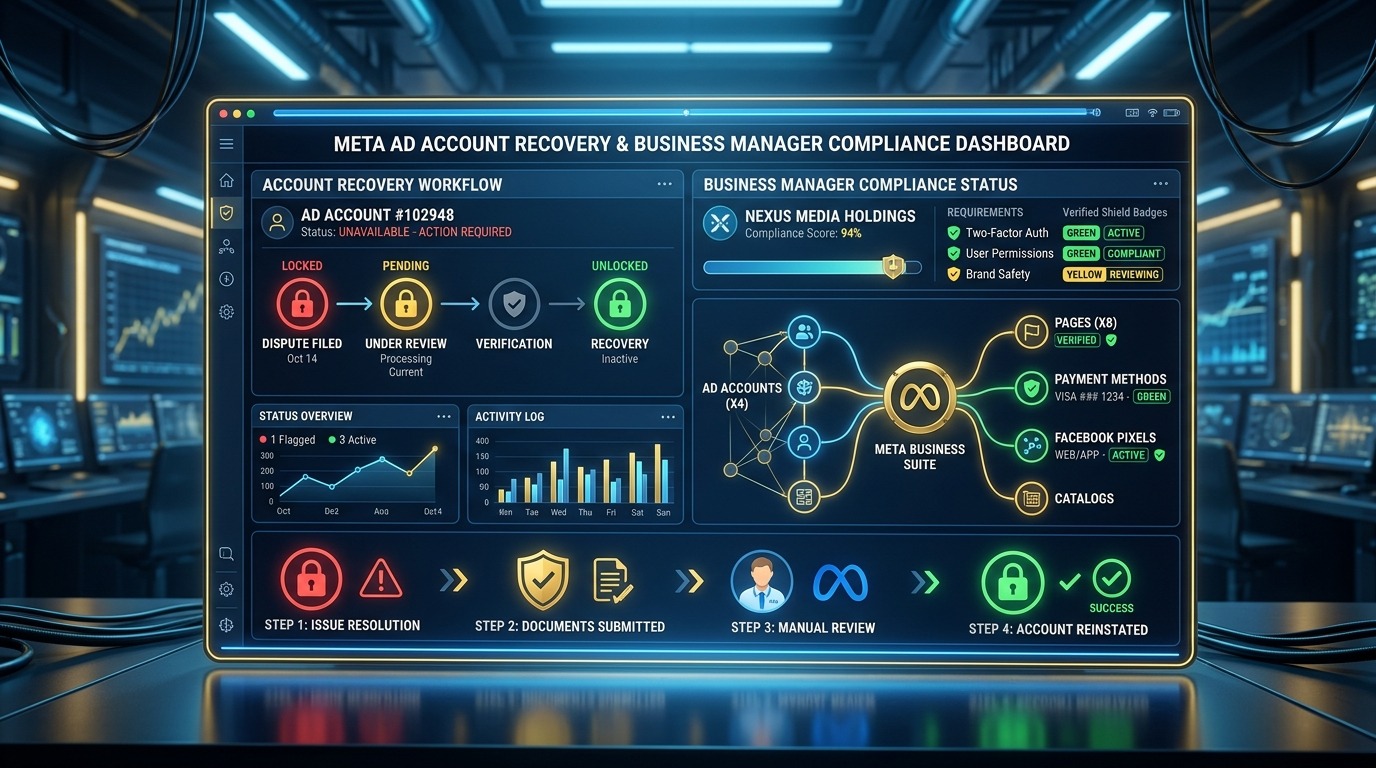
Waking up to find your Meta ad account disabled is one of the most frustrating experiences in digital marketing. Whether you are running e-commerce campaigns, lead generation funnels, or client accounts, an unexpected suspension halts your revenue stream instantly. In 2026, Meta relies heavily on automated AI moderation bots to enforce advertising policies across millions of accounts. Unfortunately, these automated algorithms frequently produce false-positive flags—disabling fully compliant accounts due to minor technical glitches, payment mismatches, or automated landing page scanner errors. If you are struggling with a facebook business manager restricted status or searching for how to recover disabled facebook ad account access, taking impulsive panic actions (like immediately creating a new ad account) can trigger permanent bans. In this step-by-step technical recovery guide, you will master the exact appeal submission procedures, diagnostic workflows, escalation paths, and shared-risk isolation techniques required to restore your advertising assets safely.
Table of Contents
- 1. Step 1: Immediate Diagnostics via Business Support Home
- 2. Step 2: Preparing & Submitting the Official Appeal
- 3. Step 3: What to Do When Your Appeal Is Denied
- 4. The “Shared Risk” Trap: Isolating Payment, IP, and Pixels
- 5. Account Hygiene & Preventive Checklist to Avoid Future Bans
- 6. Meta Account Restriction & Recovery Matrix
- 7. Frequently Asked Questions
1. Step 1: Immediate Diagnostics via Business Support Home
Before submitting any appeal, you must diagnose the exact scope and level of your restriction. Rushing to submit a generic appeal message without identifying the root cause frequently results in instant automated rejections. Meta categorizes advertising restrictions across three distinct operational layers:
- Level 1: Ad-Level Disapproval: A specific ad creative or copy angle is rejected due to policy triggers (such as personal attributes, sensational claims, or prohibited keywords). The rest of your ad account continues to run normally.
- Level 2: Ad Account Disablement: An individual ad account within your Business Manager is disabled, preventing new campaigns from launching. The overarching Business Manager infrastructure remains active.
- Level 3: Business Manager / Personal Profile Restriction: The highest severity level. Meta restricts your entire Business Manager structure or disables your personal Facebook user profile from managing any advertising assets.
To inspect your current status, navigate to Meta Business Support Home (which replaced the legacy Account Quality dashboard). Log in with your primary admin credentials and inspect the restriction notification panel:
├── Unusual Activity / Security Risk: Triggered by logging in from a new IP location or changing credit card details rapidly.
├── Policy Violation (Circumventing Systems): Triggered by using URL shorteners, redirecting landing pages, or re-uploading previously rejected ad copy.
├── Unacceptable Business Practices: Triggered by misleading landing page claims, missing privacy policies, or high customer negative feedback scores.
└── Business Verification Status Failed: Triggered when business legal documents do not match your Business Manager legal name and tax ID.
Check your registered business email address (including spam folders) for an official notification email from Meta ([email protected]). The email often contains specific policy codes (e.g., Policy 4.2: Personal Health & Appearance) that may not be displayed in the high-level dashboard view.
2. Step 2: Preparing & Submitting the Official Appeal
Once you have identified the restriction level, prepare your formal appeal. Meta enforces a strict 180-Day Appeal Expiration Rule. If you do not initiate an official review request within 180 days of restriction, Meta permanently locks the account, rendering it completely unrecoverable.
1. Essential Verification Evidence to Gather
Before clicking the ‘Request Review’ button, compile digital copies of the following verification documents into a single folder:
- Government-Issued ID: Passport or Driver’s License belonging to the Business Manager primary admin (must match the name on the personal Facebook profile exactly).
- Official Business Registration: Certificate of Incorporation, GST Certificate, or Business Tax License displaying your legal business entity name and registered address.
- Merchant / Utility Documentation: Bank statement or utility bill displaying the company address and matching the payment method used on the ad account.
- Landing Page Compliance Proof: Screenshots demonstrating that your site includes visible Terms of Service, Privacy Policy, Shipping Policy, and Contact Us pages.
2. Structuring the Professional Appeal Statement
When executing your meta ads account disabled appeal, keep your message under 200 words. Avoid emotional language, angry threats, or claiming that Meta’s system is ‘unfair.’ Automated triage systems and human reviewers evaluate appeals based on clarity, professional accountability, and documented compliance. Use the following tested framework:
“Dear Meta Business Integrity Team,
Our Ad Account [Account ID: XXXXXXXXX] was recently disabled due to an alleged policy violation regarding [Mention Policy Name]. We have reviewed Meta’s Advertising Standards thoroughly.
We believe this flag may have occurred due to an automated scanner misunderstanding our landing page context. We have taken the following corrective measures: [List 2 specific fixes, e.g., updated landing page disclaimers and removed flagged wording].
Attached are our official Business License, Govt ID, and utility documentation verifying our legitimate business operations. Please re-evaluate our account. We appreciate your assistance in restoring our access.
Sincerely,
[Admin Name & Contact Info]”
Identity Verification & Document Scanning Standards
When Meta requests government ID or business verification documents, automated OCR (Optical Character Recognition) scanners pre-screen your uploads. Uploading blurry, cropped, or edited images triggers instant automated rejections. Follow these strict formatting standards:
- Color Photo Scans: Take high-resolution color photographs of physical documents (Passports or Driver’s Licenses) on a dark, non-reflective background. Do not submit black-and-white photocopies.
- Uncropped Corners: Ensure all four corners of the ID or certificate are fully visible within the frame. Scanners flag cropped document borders as potential digital alterations.
- Matching Legal Data: The legal name, business address, and registration numbers on your tax certificates must match the data entered inside Meta Business Settings character-for-character.
- File Format & Compression: Save documents as uncompressed PDF or high-quality PNG files under 5MB. Avoid saving images with aggressive compression artifacts.
3. Appeal Submission Channels
Submit your appeal through official Meta portals:
- Primary Method (Business Support Home): Click ‘Request Review’ beside the restricted asset in Business Support Home, upload your ID, paste your appeal text, and submit.
- Meta Verified Support: If your personal Facebook profile or Instagram account has an active Meta Verified subscription, navigate to Support > Live Chat inside the app. Meta Verified subscribers gain direct access to human support agents who can escalate ticket IDs internally.
- Concierge Live Chat (High Spend Accounts): Accounts with active historical ad spend can access Meta Business Help Center (`facebook.com/business/help`) to initiate a live chat session with a Meta Ad Representative. Request the agent to escalate your ticket to a ‘Policy Specialist.’
3. Step 3: What to Do When Your Appeal Is Denied
If your initial appeal returns a status of ‘Final Decision: Account Permanently Disabled,’ do not panic. While standard automated appeal channels close after a final decision, experienced performance marketers utilize advanced escalation methods to recover their advertising operations.
1. Re-Escalating via Meta Representative Support
Standard automated email responses stating ‘This decision is final’ are frequently issued by automated algorithms rather than human policy directors. If you have access to Meta Concierge Chat or Meta Agency Partner support, request your dedicated account manager to submit an internal Specialist Review Form. Provide your original case ID and attach updated compliance proof. Human policy specialists review internal partner escalations manually, often reversing automated permanent bans.
2. Setting Up a Compliant Replacement Infrastructure
If an ad account remains unrecoverable after multiple manual escalations, you must build a clean replacement infrastructure. However, creating a new ad account inside the same flagged Business Manager will result in an immediate automatic ban due to linked asset signals.
4. The “Shared Risk” Trap: Isolating Payment, IP, and Pixels
The single biggest mistake advertisers make after an account disablement is falling into the Shared Risk Trap. Meta’s anti-fraud algorithms track cross-asset entity graphs. If you launch a new ad account using credentials or digital signatures linked to a previously disabled account, Meta flags the new account for ‘Circumventing Systems’ within minutes.
To execute a clean meta ad account ban fix, you must completely isolate all five core digital identity markers:
├── 1. IP & Browser Fingerprint Isolation:
│ └── Use an Anti-Detect Browser (e.g., Multilogin, AdsPower) paired with a clean Dedicated Residential Proxy.
│
├── 2. Payment Method Isolation:
│ └── Never reuse a credit card, BIN number, or PayPal account attached to a disabled account. Issue a fresh corporate card with a unique billing name and address.
│
├── 3. Personal Profile Isolation:
│ └── Assign a fresh, fully identity-verified Admin Facebook Profile. Do not use an unverified profile created 5 minutes ago.
│
├── 4. Domain & Hosting Isolation:
│ └── Never point ads directly to a domain blacklisted by Meta Web Scanners. Update DNS records and utilize clean landing page subdomains.
│
└── 5. Pixel & CAPI Isolation:
└── Do not share Meta Pixels or CAPI Webhook endpoints between disabled and active Business Managers. Generate a fresh Meta Pixel for your new infrastructure.
Anti-Detect Browsers & Enterprise Multi-Account Architecture
For growth agencies and performance marketers managing dozens of ad accounts, utilizing standard browser profiles (like Chrome or Firefox) poses extreme risk. If one client account encounters a policy ban, Meta’s tracking cookies and WebGL canvas fingerprints can link your browser profile to other client accounts. Enterprise teams deploy Anti-Detect Browsers (such as Multilogin, GoLogin, or AdsPower) to isolate operating system parameters, canvas fingerprints, and WebRTC IPs across separate virtual browser environments. Combining anti-detect profiles with dedicated residential proxies ensures that each ad account operates in complete digital isolation, protecting your broader client portfolio from chain-reaction bans.
For detailed strategies on structuring compliant multi-channel ad infrastructures across Meta and Google, review our Meta Advantage+ Shopping Guide.
5. Account Hygiene & Preventive Checklist to Avoid Future Bans
Preventing ad account disablements before they occur is far easier than fighting automated appeal queues. Implement the following account hygiene standards across your organization:
- Admin Redundancy: Always assign at least 2 fully identity-verified admins to every Business Manager. If one personal Facebook profile encounters a security check, the second admin maintains full control.
- 2-Factor Authentication (2FA) Mandatory Enforcement: Enable 2FA for all users within Business Manager Settings > Security Center. Accounts without 2FA enforcement are flagged for high security risk.
- Domain Verification: Verify your domain ownership inside Meta Business Settings > Brand Safety > Domains using DNS TXT record insertion.
- Pre-Scan Ad Copy & Creatives: Pre-scan headlines, ad text, and landing page URLs against Meta’s Advertising Policies. Avoid prohibited trigger words such as ‘make money fast,’ ‘miracle cure,’ ‘lose 10 lbs overnight,’ or aggressive claims.
- Maintain a 10% Budget Warm-Up Phase: When launching a brand-new ad account, do not jump from $0 to $1,000/day immediately. Scale daily budgets by no more than 20% every 48 hours to avoid automated velocity flags.
- Monitor Page Feedback Score: Regularly check your Facebook Page Feedback Score inside Business Support Home. Keep your score above 3.0 out of 5.0 to avoid delivery penalties and account suspensions.
Pre-Scanning Ad Copy & Debugging Banned Domains
Before launching high-budget campaigns, run all proposed headlines and landing page copy through internal compliance pre-scanners. Check your destination domain inside Meta’s Sharing Debugger (developers.facebook.com/tools/debug). If Meta’s scraper returns an error indicating that the link violates Community Standards, your domain has been blacklisted. Resolving domain bans requires submitting a domain unblock request through Business Support Home before launching new ad sets.
6. Meta Account Restriction & Recovery Matrix
Review the comparison matrix below to understand recovery timelines and success rates across different restriction types:
| Restriction Type | Primary Trigger | Typical Recovery Timeline | Estimated Recovery Success Rate |
|---|---|---|---|
| Ad-Level Disapproval | Prohibited text, sensitive image trigger. | 2 to 12 Hours. | 95% (Edit creative or request review). |
| Unusual Activity / Security Lock | IP location change, payment card mismatch. | 24 to 48 Hours. | 90% (Submit Govt ID & card proof). |
| Ad Account Disablement | Repeated ad rejections, landing page policy. | 48 Hours to 7 Days. | 65% – 80% (Formal appeal submission). |
| Business Manager Restriction | Unverified business, widespread policy flags. | 5 to 14 Days. | 50% – 70% (Business verification upload). |
| Circumventing Systems Ban | Re-creating accounts, URL redirect tricks. | 14 to 30 Days. | 15% – 30% (Requires manual escalation). |
50 Marketing Calculators Hub
Calculate Break-Even ROAS, Target CPA, Blended MER, and CAC Payback periods with our deterministic growth engineering tools.
How to Recover a Disabled Meta/Facebook Ad Ac: Frequently Asked Questions
How long does Meta take to review an ad account appeal in 2026?
Standard automated appeal reviews take between 24 and 48 hours. If your appeal requires manual policy specialist escalation via Meta Concierge Support, the process can take 5 to 14 business days.
What is the 180-day appeal rule for disabled Meta ad accounts?
Meta enforces a 180-day deadline from the date of account restriction. If an advertiser does not submit a formal review request within 180 days, the account is permanently archived and cannot be recovered under any circumstances.
Why was my Meta ad account disabled for no apparent reason?
Over 80% of initial account disablements are triggered by automated AI algorithms pre-scanning ad copy, payment card locations, or landing page updates. False-positive flags frequently occur when an account undergoes sudden budget increases or IP location shifts.
What should I include in my Meta ad account appeal message?
Keep your appeal message concise (under 200 words), polite, and factual. State your Account ID, acknowledge the policy in question, explain the corrective measures taken on your landing page or copy, and attach official Business Registration and Govt ID documents.
Can I create a new ad account if my old one is disabled?
Creating a new ad account inside the same flagged Business Manager will result in an immediate automatic ban for ‘Circumventing Systems.’ You must resolve the original restriction or establish a completely isolated replacement infrastructure.
What is Meta’s Business Support Home?
Business Support Home is Meta’s central dashboard (replacing Account Quality) where advertisers inspect account restriction details, view policy violation codes, upload identification documents, and track appeal ticket statuses.
How do I access Meta Live Chat support for account issues?
You can access live chat support by navigating to Meta Business Help Center (facebook.com/business/help) if your account has active historical ad spend, or by subscribing to Meta Verified on your personal profile or Instagram account.
What is the ‘Shared Risk’ rule in Meta advertising?
The Shared Risk rule is Meta’s anti-fraud system that links credit cards, IP addresses, admin profiles, pixels, and domain DNS records across accounts. If one asset is banned, Meta automatically flags all connected assets sharing those identical markers.
What credit card billing details are safe for new ad accounts?
Never reuse a credit card or PayPal account attached to a disabled ad account. Issue a fresh corporate card with a unique card number (BIN) and a billing address matching your clean Business Manager entity.
How do I increase my Facebook Page Feedback Score?
To maintain a Feedback Score above 3.0, ensure accurate product descriptions, set realistic shipping timelines, deliver high-quality customer service, and process refunds promptly to minimize negative customer surveys.
What landing page elements prevent Meta ad account suspensions?
Compliant landing pages must feature visible links to Privacy Policy, Terms of Service, Shipping & Refund Policies, and a physical Contact Us address. Avoid aggressive pop-ups or countdown timers that trigger policy flags.
Can Meta Verified help recover a disabled ad account?
Yes. Subscribing to Meta Verified provides direct access to human customer support agents via live chat inside the app, allowing you to escalate appeal tickets directly to internal policy teams.
What should I do if Meta rejects my government ID verification?
If Meta rejects your government ID, verify that your Facebook profile name matches the full legal name on your passport or license exactly. Retake the photo in bright, natural light ensuring zero glare, and re-upload the uncropped document via Business Support Home.
Does using a VPN cause Meta ad account suspensions?
Yes. Accessing Meta Ads Manager using cheap commercial VPNs triggers automated security locks because thousands of users share identical VPN IP addresses. Instead, use clean static residential proxies or standard broadband connections.
What should I do if Meta rejects my government ID verification?
If Meta rejects your government ID, verify that your Facebook profile name matches the full legal name on your passport or license exactly. Retake the photo in bright, natural light ensuring zero glare, and re-upload the uncropped document via Business Support Home.
Does using a VPN cause Meta ad account suspensions?
Yes. Accessing Meta Ads Manager using cheap commercial VPNs triggers automated security locks because thousands of users share identical VPN IP addresses. Instead, use clean static residential proxies or standard broadband connections.
What is the difference between a disabled ad account and a restricted Business Manager?
A disabled ad account stops advertising on a specific ad account while leaving your overarching Business Manager and other ad accounts active. A restricted Business Manager is a broader penalty that locks all ad accounts, pixels, and catalogs owned by that Business Manager entity.
How can I check if my website domain is banned by Meta?
To check if your domain is banned by Meta, paste your website URL into Meta’s Sharing Debugger tool (developers.facebook.com/tools/debug). If Meta displays an error stating ‘We cannot review this website because it does not comply with our Community Standards,’ your domain is blacklisted from paid ad traffic.
How can I prevent payment card BIN numbers from triggering Meta account suspensions?
To prevent credit card BIN numbers from triggering Meta account suspensions, always use corporate credit cards issued by reputable financial institutions. Ensure the cardholder name and billing zip code match the legal entity details registered in Meta Business Manager. Avoid using virtual pre-paid cards or cards previously associated with a disabled ad account.
How to Recover a Disabled Meta/Facebook Ad Ac: Strategic Summary & Conclusion
Experiencing a disabled Meta ad account is a major obstacle, but following a disciplined diagnostic and appeal process restores access for the vast majority of legitimate businesses. By identifying root causes in Business Support Home, submitting concise evidence-backed appeals, leveraging Meta Live Chat escalation, and enforcing strict asset isolation against the shared-risk trap, you safeguard your paid media operations in 2026.
Need expert assistance with an emergency ad account audit or compliance setup? Contact our performance audit team today. We provide comprehensive account diagnostics, policy compliance reviews, and technical infrastructure scaling to keep your campaigns running profitably.