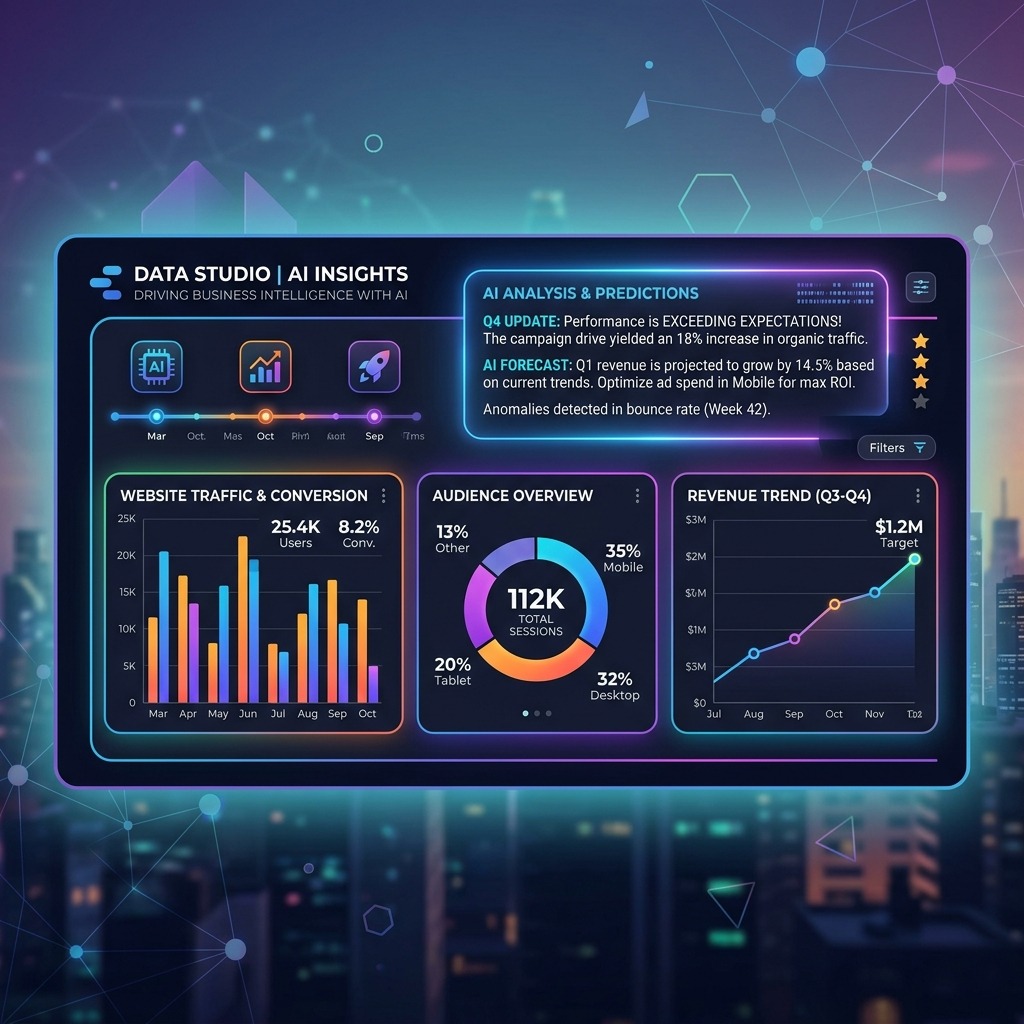
In the world of paid media, data is abundant but insight is scarce. Stakeholders – CEOs, CFOs, and even creative teams – need a clear, compelling story that explains what happened, why it happened, and what to do next. A well-designed dashboard answers the first two questions visually; an AI-generated narrative fills the gap by turning charts into readable prose, ready for executive decks, client emails, or even blog posts.
Google Data Studio: The Visual Backbone
Data Studio (now called Looker Studio) offers:
- Unlimited data connectors – Google Ads, GA4, BigQuery, CSV, and more.
- Rich chart library – time-series, funnel, waterfall, and geo-maps.
- Brandable themes, dark-mode support, and interactive filters.
Because it’s a web-based, share-able canvas, the same dashboard can be embedded in client portals, presented live, or exported as PDF.
AI-Generated Narratives: Adding the Human Voice
Using a large-language model (LLM) such as Gemini-1.5-Flash (or GPT-4-Turbo) we can feed the raw chart data and receive a concise paragraph that:
- Summarizes the performance trend.
- Highlights key drivers (budget shifts, top-performing ad groups, seasonality).
- Provides a data-backed recommendation.
The result reads like a seasoned analyst’s executive summary, but it’s generated in seconds.
Step-by-Step Workflow
1️⃣ Pull the Raw Data
Export the required metrics from Google Ads (spend, impressions, clicks, conversions, ROAS) into a .csv. For larger datasets, use the Google Ads API or BigQuery connector.
# Example Python snippet (requires google-ads library)
from google.ads.googleads.client import GoogleAdsClient
client = GoogleAdsClient.load_from_storage()
query = "SELECT metrics.clicks, metrics.impressions, metrics.cost_micros FROM campaign WHERE segments.date DURING LAST_30_DAYS"
response = client.service.google_ads.search(customer_id='1234567890', query=query)
# Save to CSV
import csv
with open('campaign_metrics.csv', 'w', newline='') as f:
    writer = csv.writer(f)
    writer.writerow(['Campaign','Clicks','Impressions','Spend'])
    for row in response:
        writer.writerow([row.campaign.name, row.metrics.clicks, row.metrics.impressions, row.metrics.cost_micros/1e6])
2️⃣ Build the Data Studio Dashboard
Connect the CSV (or BigQuery view) to Data Studio, then:
- Add a Time-Series of ROAS.
- Add a Bar chart for top 5 ad groups by conversion value.
- Insert a Geo-map if you target multiple locations.
- Apply a consistent color palette – for example,
#2563EB(deep blue) for primary series and#10B981(emerald) for growth markers.
3️⃣ Export the Chart Data for the LLM
Data Studio lets you download the underlying data as a CSV directly from each chart. Combine those CSVs into a single JSON payload:
import pandas as pd, json
roas = pd.read_csv('roas.csv')
ad_groups = pd.read_csv('ad_groups.csv')
payload = {
    'roas': roas.tail(5).to_dict(orient='records'),
    'top_ad_groups': ad_groups.head(5).to_dict(orient='records')
}
print(json.dumps(payload, indent=2))
4️⃣ Generate the Narrative
Send the JSON to the LLM via the /v1/chat/completions endpoint (or your internal wrapper). Prompt example:
"You are a senior paid-media analyst. Summarize the following campaign data in 3-4 concise sentences. Highlight any week-over-week trend, the top-performing ad group, and a recommendation for the next 30 days. Output plain text only."
{payload}
The response might be:
“In the last week ROAS climbed to 5.2x, driven primarily by the ‘Summer-Sale’ ad group which delivered a 48% higher conversion value than the account average. Mobile placements contributed 62% of the spend but generated 78% of conversions, indicating strong intent on-the-go. To sustain momentum, allocate an additional 15% budget to the top-performing ad group and experiment with a new dynamic creative focused on product-specific offers.”
5️⃣ Publish the Combined Story
Embed the dashboard (via the embed URL) and place the AI-generated paragraph directly beneath the chart. For a blog post, wrap the embed in an iframe and ensure responsive sizing.
<iframe width="100%" height="480" src="https://datastudio.google.com/embed/reporting/abcd1234?chromeless=true" frameborder="0" allowfullscreen></iframe>
<p>{{AI Narrative}}</p>
Real-World Example: Paid-Media Campaign for IAOL
We recently applied this workflow to the IAOL case study (see our IAOL post). The dashboard highlighted a 3-month ROAS lift from 3.1x to 5.2x. The AI narrative succinctly described the lift and recommended a 20% budget increase for the high-performing “AI-Ready” ad group. The combined visual-text story reduced client review time from an hour to under five minutes.
Best Practices & Pitfalls to Avoid
- Data Clean-up First: Remove null rows, ensure consistent time zones, and round monetary values.
- Prompt Engineering: Be explicit about the output format (plain text,
markdown, orHTML) and length. - Guardrails: Add a post-generation review step – a senior analyst should verify the AI’s claim, especially when attributing performance to a specific creative.
- Version Control: Keep a Git repo of your narrative prompts; a small change can alter tone dramatically.
- Privacy Compliance: Never send raw customer-level data to external LLM APIs. Aggregate to the campaign level before sending.
Conclusion & Call-to-Action
Marrying Google Data Studio’s powerful visualizations with AI-generated narratives turns raw campaign metrics into a story that sells – to clients, to internal leadership, and ultimately to your own brand. Start with a single dashboard, experiment with prompts, and you’ll see a measurable boost in stakeholder alignment and decision speed.


Leave a Reply